Settings relating to the physical radio parameters are configured under . By default, there is an entry in the table for every physical WLAN radio for modification as required.
For compatible access points, this table contains an additional entry "WLAN-3" for configuring the 6-GHz WLAN radio.
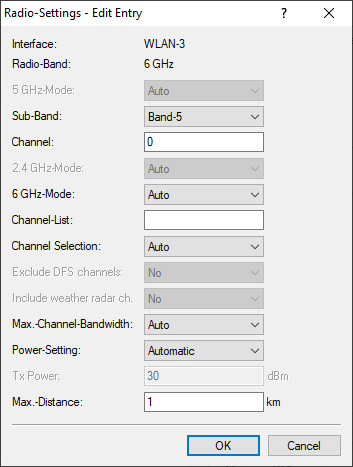
- Interface
- The internal name of the WLAN radio. This cannot be changed.
- Radio band
- Shows whether this interface is operating in the 2.4-GHz, 5-GHz or 6-GHz frequency range.
- 5-GHz mode
-
Here you configure the mode used for 5-GHz radio operation. This directly affects the available data rates. If a
restriction is set here, a client attempting to login triggers a check to see whether the modes used by the client
match with those configured here. Depending on this, the login is allowed or denied. The following modes are
available:
- Auto
- All modes supported by the device are used.
- 11an-mixed
- The modes 802.11a and 802.11n are used.
- 11anac-mixed
- The modes 802.11a, 802.11n and 802.11ac are used.
- 11nac-mixed
- The modes 802.11n and 802.11ac are used.
- 11ac-only
- Only the 802.11ac mode is used.
- 11anacax-mixed
- The modes 802.11a, 802.11n, 802.11ac and 802.11ax (Wi‑Fi 6) are used.
- 11anacaxbe-mixed
- The modes 802.11a, 802.11n, 802.11ac, 802.11ax (Wi‑Fi 6) and 802.11be (Wi‑Fi 7) are used.
Note: Maximum compatibility and performance is available by setting the mode to Auto. - Sub-Band
-
Here you configure which sub-bands are used in the 5-GHz mode. The following sub-bands are available:
- Band-1
- Only sub-band 1 is used. This corresponds to the WLAN channels 36, 40, 44, 48, 52, 56, 60 and 64.
- Band-2
- Only sub-band 2 is used. This corresponds to the WLAN channels 100, 104, 108, 112, 116, 132, 136 and 140.
- Band-1+2
- Both sub-band 1 and sub-band 2 are used.
- Band-5
- The designation Band-5 is based on the FCC's U-NII nomenclature and corresponds to Band U-NII-5. In the EU, only the 5.925–6.425 MHz frequency range is approved for WLAN in the 6-GHz band (which corresponds to Band 5 or U-NII-5).
Note: WLAN channels 120, 124 and 128 are not used because these channels are reserved for the primary user RADAR. - Channel
-
Here you configure the channel to be used for WLAN radio operations.
The value "0" allows the automatic selection of a suitable channel.
Note: With automatic channel selection, the channel is not changed during operation. The channel is only selected when the WLAN module starts.Note: In 5-GHz mode, the channel set here represents a preferred channel. However, since the 5-GHz band requires the use of Dynamic Frequency Selection (DFS), there is no guarantee that the preferred channel will actually be used.Note:
In the 6-GHz band, the following channels can be configured in LCOS LX:
1, 5, 9, 13, 17, 21, 25, 29, 33, 37, 41, 45, 49, 53, 57, 61, 65, 69, 73, 77, 81, 85, 89, 93
These channels are 20 MHz wide. If a channel width greater than 20 MHz is selected (default setting for the 6-GHz band: 160 MHz), the channel set here becomes the primary channel for the wider channel. In this way, the primary channel can also be freely selected within a >20 MHz-wide channel; all you have to do is enter the desired 20 MHz channel.
- 2.4-GHz mode
-
Here you configure the mode used for 2.4-GHz radio operation. This directly affects the available data rates. If a
restriction is set here, a client attempting to login triggers a check to see whether the modes used by the client
match with those configured here. Depending on this, the login is allowed or denied. The following modes are
available:
- Auto
- All modes supported by the device are available, except for 802.11b.
- 11bg-mixed
- The modes 802.11b and 802.11g are used.
- 11g-only
- Only the 802.11g mode is used.
- 11bgn-mixed
- The modes 802.11b, 802.11g and 802.11n are used.
- 11gn-mixed
- The modes 802.11g and 802.11n are used.
- 11bgnax-mixed
- The modes 802.11b, 802.11g, 802.11n and 802.11ax (Wi‑Fi 6) are used.
- 11gnax-mixed
- The modes 802.11g, 802.11n and 802.11ax (Wi‑Fi 6) are used.
Note: Maximum compatibility and performance is available by setting the mode to Auto. - 6-GHz mode
-
Here you configure the mode used for 6-GHz radio operation. The following modes are available:
- Auto
- All modes supported by the device are used.
- 802.11ax
- The mode used is 802.11ax (Wi‑Fi 6E).
- 11axbe-mixed
- The modes 802.11ax (Wi‑Fi 6) and 802.11be (Wi‑Fi 7) are used.
Note: Maximum compatibility and performance is available by setting the mode to Auto. - Channel list
- Here you configure a comma-separated list of further WLAN channels. Automatic channel selection selects a channel from this list, rather than from the full range of supported WLAN channels.
- Channel selection
-
Networks operating without manual WLAN channel planning or ARC 2.0 use automatic channel selection, which evaluates
the WLAN channel based on quality criteria such as channel load, interference, and other SSIDs on that channel. If
the access points in this type of network are all started at the same time, e.g. after a power failure, all of the
access points will assess the channel quality and could well all come to the same result. In this case many access
points will end up working on the same channel, which in some scenarios may be problematic. Random WLAN channel
selection after restarting will ensure that the distribution is as even as possible in larger networks, with little
multiple occupancy of any channels.
Note: LANCOM recommends the use of LMC-supported channel planning via ARC 2.0, or to conduct manual planning based on a site survey.
- Exclude DFS channels
- Here you configure whether to use channels in the 5-GHz band that require Dynamic Frequency Selection (DFS). If these channels are excluded here, the channels still available in the 5-GHz band are 36, 40, 44 and 48. Since DFS is not required for these channels, they can be set with the option Exclude DFS channels in the radio channel and also in the Channel list.
- Include weather radar channels
- Automatic channel selection allows for the channels 120, 124 and 128 used by the weather radar in the frequency range 5.6 to 5.65 MHz. If one of the channels is used, the DFS scan time (CAC time) increases from 1 to 10 minutes. During the scan, the 5-GHz radio cannot be reached by WLAN clients.
- Max. channel bandwidth
-
Here you configure the maximum allowed channel bandwidth. The following settings are available:
- Auto
- For a 2.4-GHz radio the channel bandwidth of 20 MHz is always used. For a 5-GHz radio the maximum possible channel bandwidth (up to 80 MHz) is used,. For a 6-GHz radio the maximum possible channel bandwidth (up to 320 MHz) is used. If desired, the channel bandwidth can be further restricted here by using one of the other values.
- 20 MHz
- The channel bandwidth is always 20 MHz.
- 40 MHz
- Depending on the environment, channel bandwidth is up to 40 MHz, but this can also fall back to 20 MHz.
- 80 MHz
- Depending on the environment, channel bandwidth is up to 80 MHz, but this can also fall back to 40 MHz or 20 MHz.
- 160 MHz
- Depending on the environment, channel bandwidth is up to 160 MHz, but this can also fall back to 80 MHz, 40 MHz or 20 MHz.
- 320 MHz
- Depending on the environment, channel bandwidth is up to 320 MHz, but this can also fall back to 160 MHz, 80 MHz, 40 MHz or 20 MHz.
- Antenna gain
-
Where the transmission power of an antennae exceeds the levels permitted in the country of operation, the power must
be attenuated accordingly. Here you enter the gain of the antenna minus the actual cable loss. For an AirLancer
Extender O-18a antenna with a gain of 18 dBi and a 4 m cable with a loss of 1 dB/m, the 'Antenna gain'
would be entered as 18 - 4 = 14. This value for true antenna gain is dynamically used to calculate and emit the
maximum permissible power with regards to other parameters such as country, data rate and frequency band.
Note: Available for devices with external antennas only.
- Antenna mask
-
Note: The antenna mask settings are only available for devices with external or removable antennas.This setting helps when using WLAN antennas with a different number of streams than the access point (e.g., a two-stream antenna connected to a four-stream access point). This allows you to disable ports on the access point that are not connected to an antenna.
- Power setting
- This setting regulates whether to use the maximum permitted transmission power that the access-point hardware can achieve ("Automatic") or to specify the desired target transmission power in manual mode ("Manual"). This is done in dBm in the field Tx power.
- Tx power
-
Depending on the setting in the field Power setting, you set the transmission
power in dBm here.
Note: If the hardware of the access point is not capable of the desired transmission power, the maximum possible value is set automatically.Note: Under no circumstances will the access point exceed the regulatory limits for transmission power. These are always respected automatically, regardless of the settings made here.
- Max. distance
- Enter the distance to the furthest WLAN station (e.g. to a WDS partner). This setting increases the internal timeout for WLAN ACK packets so that packets from a distant station can be processed. Default is 1 kilometer.