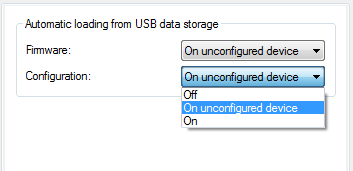
The configuration for automatic loading is to be found under the following menu:
- LANconfig: Management / USB-Datenträger
- WEBconfig: LCOS menu tree / Setup / Autoload

- Firmware This option activates the automatic loading of loader and/or firmware files
from a connected USB medium.
Possible values:
Automatic loading of loader and/or firmware files is deactivated.
Automatic loading of loader and/or firmware files is activated.
When a USB
medium is mounted, a suitable loader and/or firmware file us uploaded to the device. The
USB medium is mounted when it is plugged into the USB connector on the device, or when it
is restarted.
Automatic loading of loader and/or firmware files is only activated when the device
has its factory settings. A configuration reset can be used to return the device to its
factory settings at any time.
Default:
Note: This option is set to "inactive" in the Security Settings Wizard or the Basic
Settings Wizard.
- Configuration This option activates the automatic loading of configuration and/or
script files from a connected USB medium.
Possible values:
Automatic loading of configuration and/or script files is deactivated.
Automatic loading of configuration and/or script files is activated.
When a
USB medium is mounted, a suitable configuration and/or script file us uploaded to the
device. The USB medium is mounted when it is plugged into the USB connector on the device,
or when it is restarted.
Automatic loading of configuration and/or script files is only activated when the
device has its factory settings. A configuration reset can be used to return the device to
its factory settings at any time.
Default:
Note: This option is set to "inactive" in the Security Settings Wizard or the Basic
Settings Wizard.
Note: If a user wants to avoid that an undesirable configuration
is loaded to the device due to plugging an USB medium an resetting the device to factory
default, then the reset button has to be de-activated.